Taking notes on an iPad has revolutionized the way we capture and organize information. The convenience and versatility of digital note-taking make it an attractive option for students, professionals, and creative thinkers alike.With an iPad and the right app, you can easily jot down ideas, sketch diagrams, and even record audio alongside your written notes.
The iPad offers many advantages for note-taking. You can type, write by hand with an Apple Pencil, or do both in the same document. This flexibility allows you to choose the method that works best for each situation. Plus, your notes are always with you, searchable, and easy to share or back up.
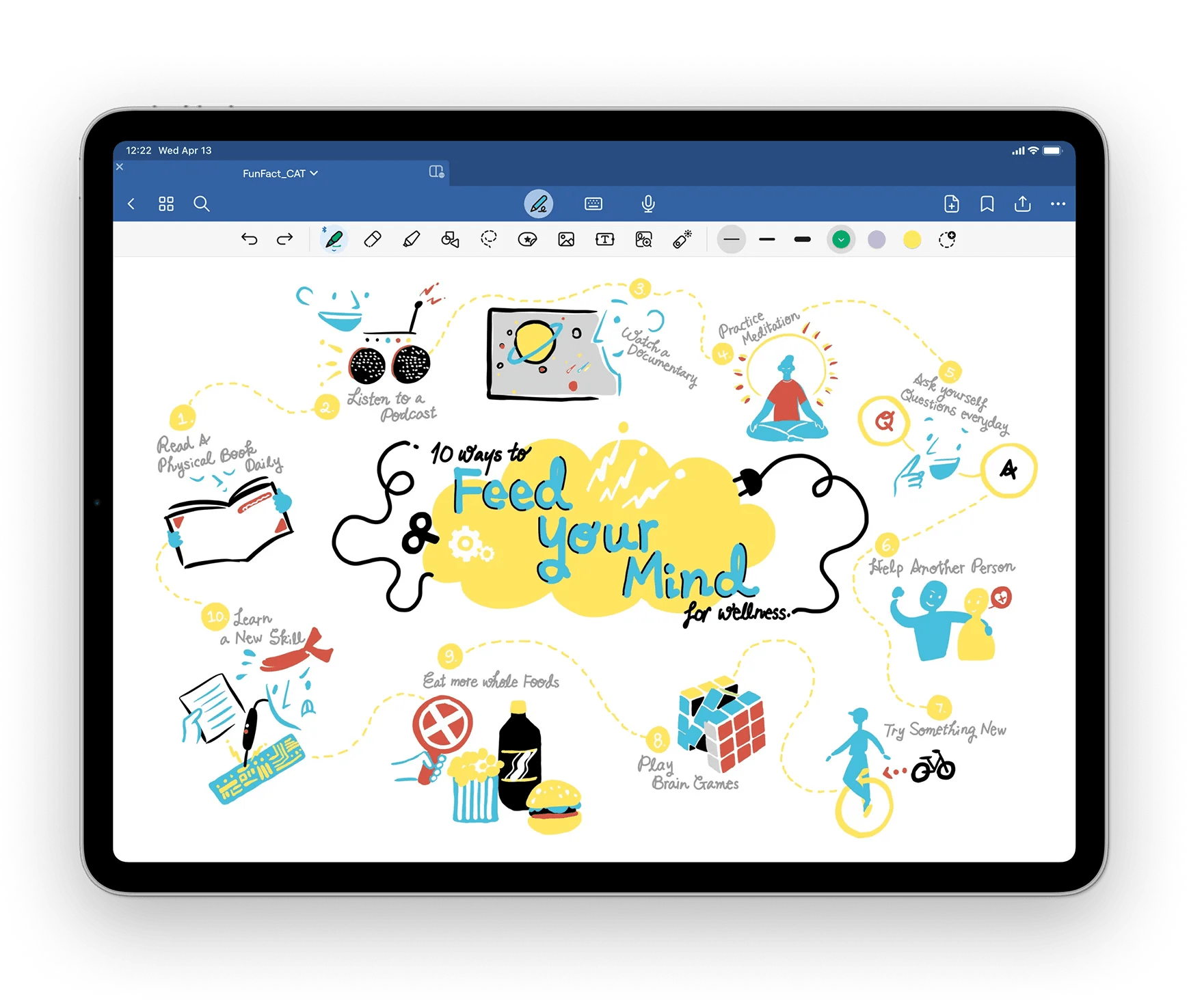
Getting started with note-taking on an iPad is simple. The built-inNotes appprovides basic features, while third-party apps offer more advanced options. Some popular choices include GoodNotes, Notability, and OneNote. Each has unique features to suit different needs and preferences.
Your iPad: The Ultimate Digital Notebook
Choosing the Right Note-Taking App
The App Store offers a wide variety of note-taking apps, each with its own strengths and weaknesses. Here are a few popular options:
Consider your needs and preferences when choosing an app. Do you primarily need handwriting support? Is advanced organization important to you? Trying out a few different apps can help you find the perfect fit.
Essential Tools and Accessories
To enhance your note-taking experience, consider these tools:
Tips and Techniques for Effective Note-Taking
Beyond the Basics
Note-Taking Apps Comparison Table
By following these tips and exploring the different note-taking options available, you may maximize your iPad’s potential as a powerful and versatile tool for learning, productivity, and creativity.
Choosing the Right Apps and Tools
Selecting the optimalnote-taking appsand tools for your iPad enhances productivity and organization. Consider app features, stylus compatibility, and cloud storage options to create an efficient digital note-taking system.
Comparing Note-Taking Apps
GoodNotes 6offers powerful organization tools and PDF markup features. It excels in handwriting recognition and provides a variety of paper templates.
Notability stands out with its audio recording feature. This allows you to sync your notes with voice memos, ideal for lectures or meetings.
OneNoteintegrates seamlessly with Microsoft’s ecosystem. It’s free and supports cross-platform use, making it a top choice for Windows users.
Apple Notes comes pre-installed on iPads. It offers basic note-taking features and syncs across Apple devices via iCloud.
Optimizing with Apple Pencil and Stylus Support
TheApple Pencilenhances note-taking on iPads. It offers pressure sensitivity and tilt recognition for a natural writing experience.
LiquidTextmaximizes Apple Pencil functionality. It allows you to manipulate text and create mind maps with gesture controls.
Third-party styluses provide alternatives. They often cost less but may lack some advanced features of the Apple Pencil.
Consider your iPad model when choosing a stylus. The Apple Pencil 2 works with newer iPad Pro, Air, and Mini models. Older iPads use the first-generation Apple Pencil.
Leveraging iCloud and Cloud Storage
iCloud integration allows seamless syncing of notes across Apple devices. It provides 5GB of free storage with options to upgrade.
Dropboxoffers cross-platform cloud storage. Many note-taking apps support Dropbox integration for backup and sharing.
Consider apps with their own cloud services. Evernote and OneNote provide dedicated cloud storage for your notes.
Automatic syncing ensures your notes are always up-to-date. Look for apps that sync in real-time to avoid data loss.
Mastering Note-Taking Techniques
Effective note-taking on iPad involves organizing information, enhancing notes with multimedia, and converting handwriting to digital text. These skills help you create comprehensive and useful notes for study or work.
Effective Organization Strategies
Creating a clear structurefor your notes is key to easy retrieval later. Use headings and subheadings to break down topics. Color-code different subjects or themes for quick visual reference.
Create folders or notebooks for each class or project. This keeps related notes together. Use tags to cross-reference information across different notebooks.
Consider using templates for consistentnote layouts. Many apps offer pre-made templates or let you create custom ones. This saves time and ensures you capture all necessary details.
Enhancing Notes with Multimedia
iPad note-taking apps allow you toadd images, sketches, and audio recordingsto your notes. This creates rich, interactive study materials.
Insert relevant images or diagrams next to text explanations. Use the pen tool to annotate these visuals for clarity. Record audio during lectures and link it to your written notes for easy playback.
Create mind maps or flowcharts to visualize complex concepts. Many apps offer built-in drawing tools for this purpose. Use different pen colors and thicknesses to highlight important elements.
Converting Handwriting to Digital Text
Handwriting recognition technologyon iPads has improved significantly. Many apps now offer the ability to convert your handwritten notes to typed text.
Write naturally with an Apple Pencil or stylus. The app will convert your writing to text in real-time or on command. This feature combines the benefits of handwriting with the searchability of digital text.
Some apps also offer math conversion. Write equations by hand and the app will convert them to proper mathematical notation. This is especially useful for STEM subjects.
Collaboration and Sharing
The iPad’s note-taking capabilities extend beyond personal use. You can easily share and collaborate on notes with others while integrating your favoriteproductivity tools.
Real-Time Note Sharing and Collaboration
The Notes app on iPad allows for seamlessreal-time collaboration. To share a note, open it and tap the share icon. Choose “Collaborate” to invite others via Messages, email, or AirDrop.
you’re able to set permissions for collaborators, deciding whether they can edit or view only. As changes are made, everyone sees updates instantly. This feature is ideal forshared to-do listsor group projects.
For more advanced collaboration, consider third-party apps. Some offer digital whiteboard features, perfect for brainstorming sessions. Others include text recognition, making it easy to search handwritten notes.
Integrating Note Apps with Productivity Tools
Your iPad note-taking can become more powerful when linked with other productivity apps. Many note apps sync across devices, ensuring your notes are always up-to-date.
Some apps offer integration with task management tools. This allows you to turn notes into actionable items in your to-do list with a few taps.
Consider your workflow when choosing an app. Look for features that complement your existing tools and boost your productivity.
Advanced Functionality and Accessibility
iPad note-taking apps offer powerful features beyond basic text input. These tools enhance productivity and problem-solving capabilities for users of all skill levels.
Recording Audio and Attaching Files
Apple Noteslets you record audio directly within notes. This feature proves invaluable for capturing lectures or meetings. To start, tap the microphone icon and begin speaking. The app saves recordings alongside your text.
You can also attach various file types to your notes. PDFs, images, and documents are easily added. Simply drag and drop or use the attachment menu. This functionality creates comprehensive reference materials.
Some apps offer advanced scanning features. You can digitize physical documents using your iPad’s camera. The software then enhances readability and allows for text search within scanned items.
Utilizing Advanced Calculation and Problem-Solving Features
Many note-taking apps now include built-in calculators and equation solvers. These tools streamline complex calculations without switching between apps.
For visual thinkers, mind-mapping features help organize ideas. Create branching diagrams to connect concepts and explore relationships between topics.
Some apps offer customizable templates for specific tasks. These might include project planners, study guides, or brainstorming frameworks.
These advanced features transform your iPad into a powerful note-taking and problem-solving tool.
Frequently Asked Questions
iPad note-takingoffers various options and features to enhance productivity. Users can choose from multiple apps, utilize handwriting capabilities, and leverage tools like the Apple Pencil for a seamless experience.
What are the best note-taking apps available for the iPad?
Several note-taking apps stand out for iPad users.Apple Notescomes pre-installed and offers basic functionality. Notability and GoodNotes provide advanced features for more complex note-taking needs.
Each app has unique strengths. Apple Notes excels in simplicity and integration with iOS. Notability shines in audio recording alongside notes. GoodNotes offers superior handwriting recognition.
Can the iPad be effectively used for taking handwritten notes?
Yes, the iPad excels at handwritten note-taking. With a compatible stylus like the Apple Pencil, you can write naturally on the screen.
Many apps offer palm rejection technology. This allows you to rest your hand on the screen while writing. The experience closely mimics writing on paper.
How does one use the Apple Pencil to take notes on an iPad?
To use the Apple Pencil for note-taking, first ensure it’spaired with your iPad. Open your preferred note-taking app and start writing on the screen.
The Apple Pencil offers pressure sensitivity. This allows for varied line thickness based on how hard you press. Tilt the Pencil for shading effects in supported apps.
Is there a way to convert handwritten notes to text on the iPad?
Many note-taking apps offer handwriting-to-text conversion. This feature typically uses optical character recognition (OCR) technology.
To use this function, write your notes as usual. Then use the app’s conversion tool to transform your handwriting into editable text. Accuracy may vary based on your handwriting clarity.
What features should I look for in a note-taking app for use with the iPad Pro and Apple Pencil?
Key features for iPad Pro and Apple Pencil note-taking include:
Look for customization optionsin the app’s interface. This allows you to tailor the note-taking experience to your preferences.
How does Microsoft OneNote integrate with the iPad for note-taking purposes?
Microsoft OneNote offers a robust note-taking experience on iPad. It syncs across devices, allowing access to your notes from anywhere.
OneNote supports the Apple Pencil for handwritten notes. You can mix typed text, handwriting, and sketches in a single note. The app also offers organizational features like notebooks, sections, and pages.
