Changing an administrator account to a standard user on macOS enhances security and prevents accidental system changes. This process is straightforward and can be completed in a few steps.To change an admin account to standard on a Mac, go to System Settings > Users & Groups, click the lock icon to make changes, select the user, and uncheck “Allow user to administer this computer.”
MacOS offers different account types to manageuser accessand permissions. Administrator accounts have full control over the system, while standard user accounts have limited privileges. Switching from admin to standard can help protect your Mac from unauthorized changes and potential security risks.
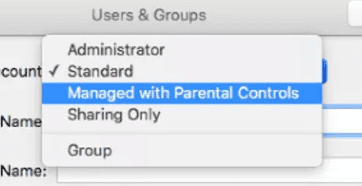
Before making this change, ensure you have at least one other administrator account on your Mac. This safeguards against accidentally locking yourself out of administrative functions. After changing an account type, the user may need to adjust to having fewer permissions for certain tasks.
Change User Account Type on macOS
It’s easy to change a user account type on macOS, whether you want to switch from an administrator account to a standard account or vice versa. Here’s how:
Before You Begin
Steps to Change an Account Type
Additional Tips
Summary Table
Key Takeaways
Changing Account Types on MacOS
MacOS allows users to switch between administrator and standard account types. This process involves modifying user settings through System Preferences or using Terminal commands.
Accessing System Preferences
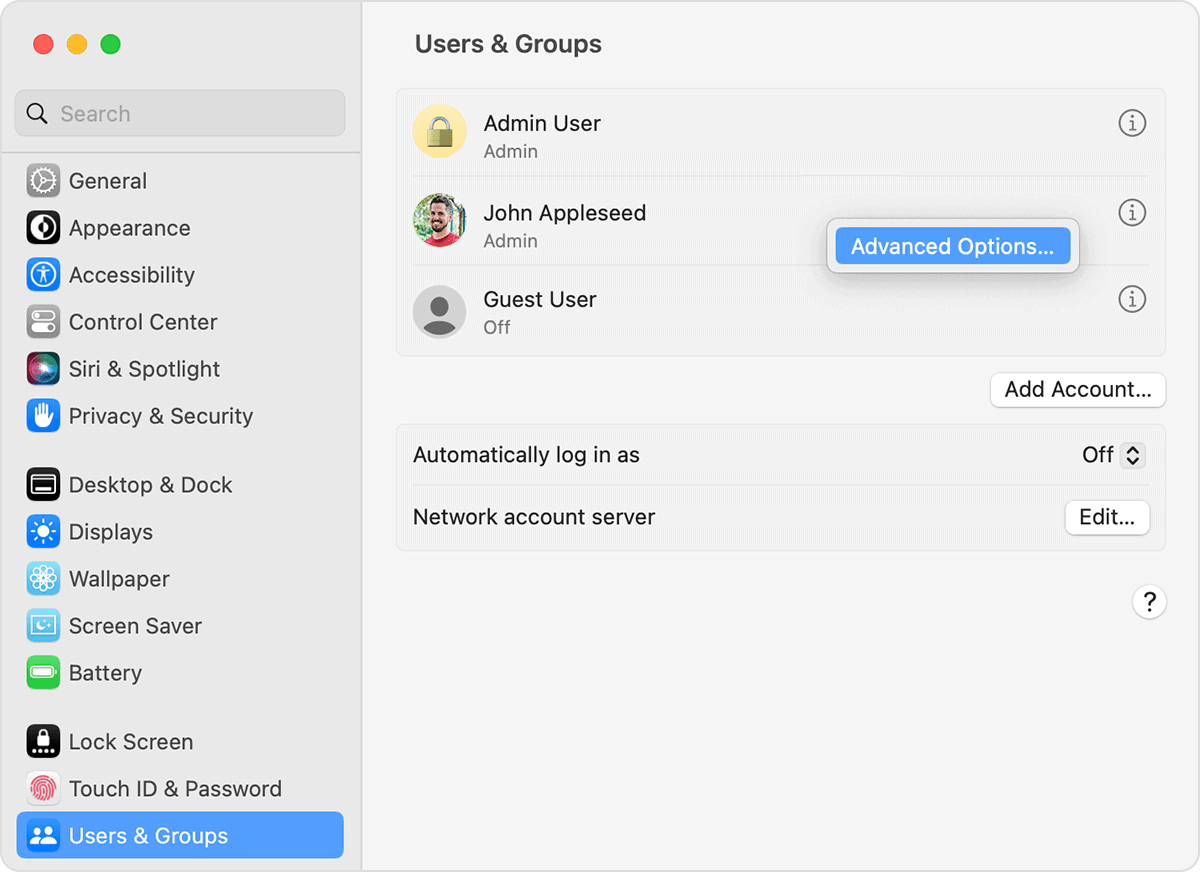
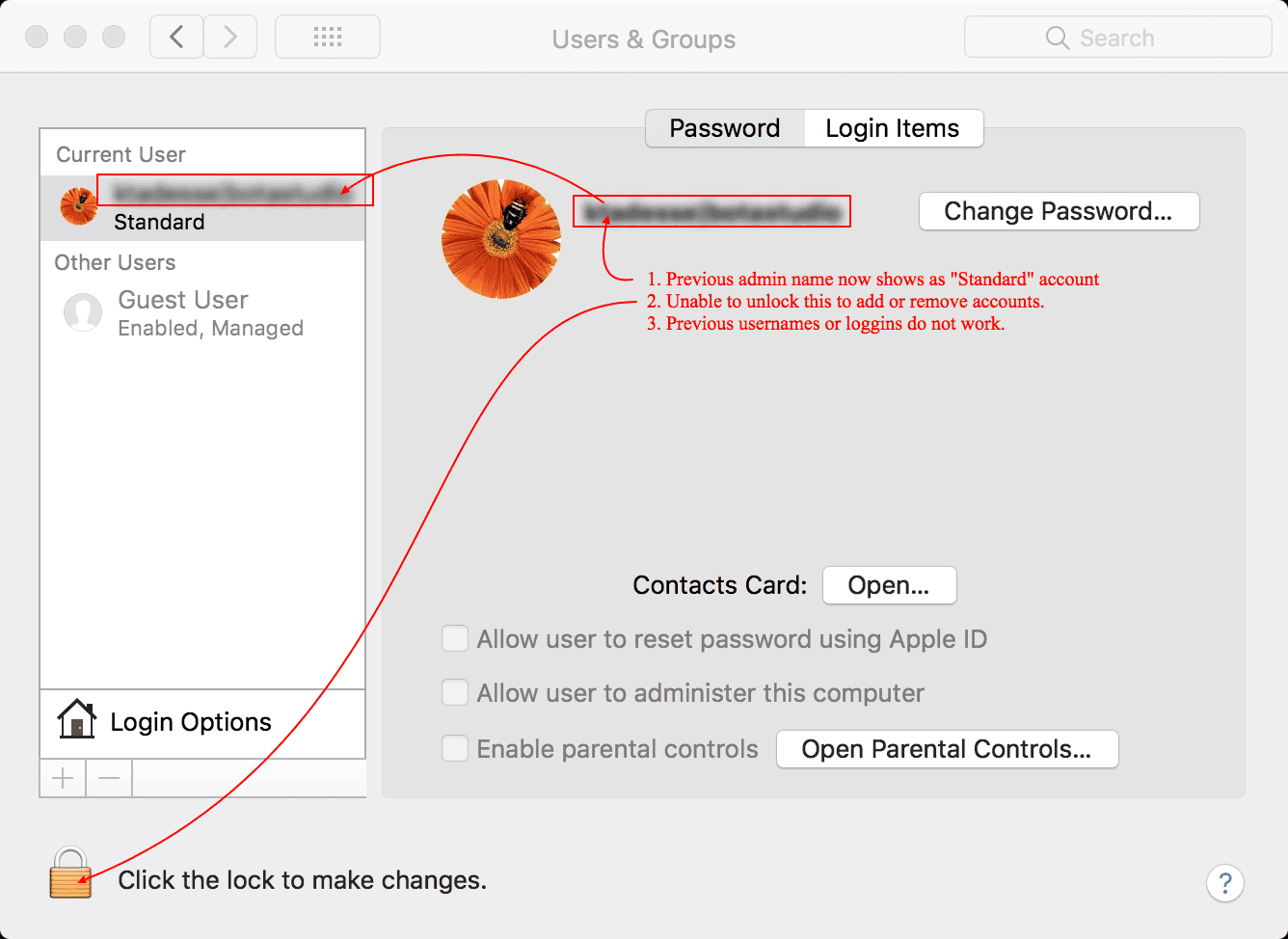
To change account types open System Preferences. Click the Apple menu in the top left corner. Select System Preferences from the dropdown menu. Look for the Users & Groups icon. Click it to open user account settings.
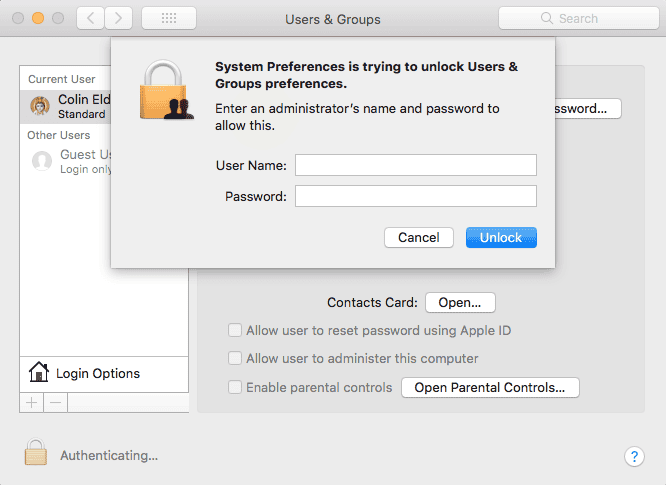
If the padlock icon is locked click it. Enter your admin password to unlock. This lets you make changes to user accounts.
Modifying User Accounts
Select the user account you want to change. Uncheck the box next to “Allow user to administer this computer” to remove admin rights. This turns an admin account into a standard one.
To make a standard account an admin check that same box. Only admins can make these changes. At least one admin account must always exist on the Mac.
Using Terminal Commands
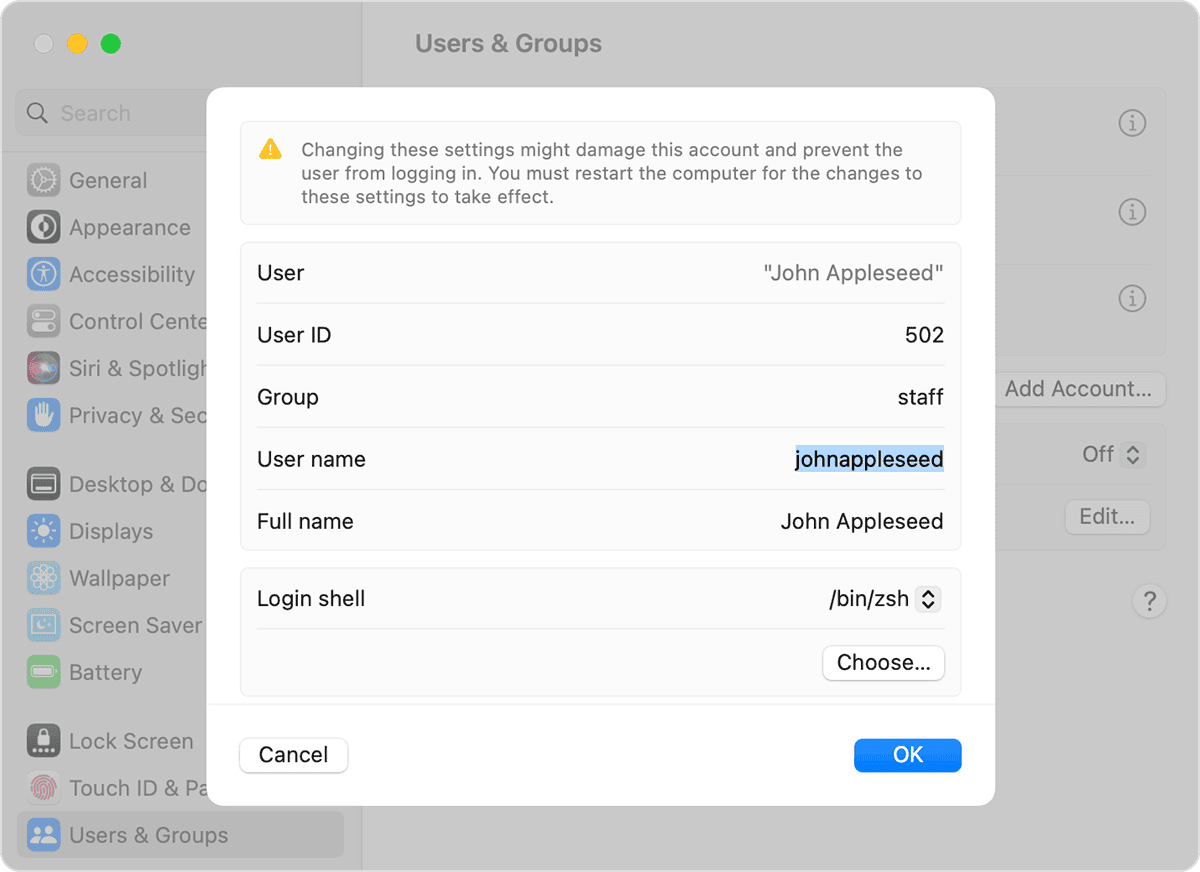
Advanced users can change account types with Terminal commands. Open Terminal from the Applications folder. Type “sudo dscl . -delete /Groups/admin GroupMembership username” to remove admin rights. Replace “username” with the account name.
To add admin rights use “sudo dscl . -append /Groups/admin GroupMembership username”. These commands need admin privileges to run.
Security Considerations
Changing account types affects system security. Admin accounts can install software and change system settings. Standard accounts have limited powers. This reduces the risk of accidental changes or malware.
Keep admin accounts to a minimum. Use standard accounts for daily tasks. This improves overall system security. Always think carefully before granting admin rights to any user.
Additional User Account Settings
MacOS offers other user account options. These include:
Adjust these settings in the Users & Groups pane. Some options may need admin rights to change. Review all settings when creating or modifying user accounts.
Image Credit:https://discussions.apple.com/thread/8323844?sortBy=rank
Frequently Asked Questions
Changing user account types on macOS involves specific steps and considerations. Here are common questions about modifying administrator and standard user roles on Mac computers.
What are the steps to alter an administrator account to a standard user on macOS?
Go to System Settings and click Users & Groups. Click the lock icon and enter your password. Select the admin account you want to change. Uncheck the box next to “Allow user to administer this computer.” This removes admin rights and turns the account into a standard user.
Can I demote my account from admin to standard without using the admin password on a Mac?
No you’re able to’t demote an admin account without the admin password. You need admin rights to make changes to user accounts. Create a new admin account first if needed. Then log in with that account to change your original account to standard.
What is the process to modify user roles from standard to administrator through the Terminal in macOS?
Open Terminal and type “sudo dscl . -append /Groups/admin GroupMembership username”. Replace “username” with the account name you want to promote. Enter the admin password when prompted. This adds the user to the admin group giving them admin rights.
How can I remove an administrative user from a Macintosh computer?
Go to System Settings > Users & Groups. Click the lock and enter your password. Select the admin account you want to remove. Click the minus (-) button below the user list. Choose what to do with the user’shome folder files. Click Delete User to confirm.
Is there a way to change the default administrator account on macOS?
macOS doesn’t have a “default” admin account. But you’re able to create a new admin account and delete the old one. Or change the old admin to standard. Make sure you have at least one active admin account on your Mac at all times.
What method is used to switch between users at the login screen on a Mac?
At the login screen click the user icon you want to switch to. Enter that user’s password. you’re able to also click the arrow next to your name to see all user accounts. Select Fast User Switching in System Settings to quickly switch users from the menu bar.
