Knowing how to back up your Mac or MacBook is important to keep your files safe and protect you against failure, loss, or theft. The easiest way to backup a MacOS device (like Mac, iMac, Macbook, etc.) is to use Time Machine, the backup software provided by Apple. Time Machine is a critical tool you can use to protect your valuable data. You have options for backing up, including using built-in solutions like Time Machine and iCloud, or doing manual backups and using third-party tools. Regular backups are essential to make sure you can recover your data if something unexpected happens.
You can use Time Machine to back up to an external hard drive so you can quickly get everything back if something goes wrong. Using iCloud or other cloud services is another option to store your files online and access them from anywhere, keeping them safe if your MacBook is lost or broken.
Safeguarding Your Data: A Guide to Backing Up Your Mac
Time Machine: Your Built-in Backup Solution
Time Machine is Apple’s integrated backup feature, offering a hassle-free way to safeguard your data. It automatically creates hourly, daily, and weekly backups, allowing you to restore your entire system or individual files in case of data loss or accidental deletion.
To get started, simply connect an external hard drive or network-attached storage (NAS) device with sufficient capacity. Time Machine will guide you through the initial setup and then take care of the rest, backing up your data in the background while you work.
iCloud: Cloud-Based Backup for Convenience
iCloud provides a seamless backup solution, keeping your data safe and accessible across all your Apple devices. It automatically backs up your photos, videos, documents, and other important files, allowing you to retrieve them anytime, anywhere.
While iCloud offers 5GB of free storage, you’re able to upgrade to a larger plan for additional space. iCloud also enables syncing across devices, ensuring your data is always up to date, regardless of which device you’re using.
Manual Backups: A DIY Approach for Extra Security
For added peace of mind, consider creating manual backups of your important files. This involves copying them to an external hard drive or cloud storage service like Dropbox or Google Drive.
While not as automated as Time Machine or iCloud, manual backups provide an extra layer of protection, especially for critical files you can’t afford to lose.
Third-Party Backup Solutions: Explore Advanced Options
If you require more advanced backup features or want to customize your backup strategy, explore third-party backup solutions. These tools often offer features like:
Comparison of Backup Methods
Key Takeaways
Setting Up Local Backup with Time Machine
Time Machine is a built-in tool for backing up your Mac. It’s easy to set up and helps keep your data safe. Let’s go through the steps to get it working.
Choosing Your Backup Drive
Pick an external drive for your backups. You can use an SSD or a regular hard drive. Make sure it has enough space for all your files. USB and FireWire drives both work well.
Plug the drive into your Mac. Your computer should see it right away. If not, check the connection.
Some drives are made just for Time Machine. These work great, but any drive will do. The bigger the drive, the more backups you can keep.
Configuring Time Machine Settings
Open System Settings on your Mac. Look for Time Machine in the list. Click on it.
Turn on the switch next to “Back Up Automatically”. This makes Time Machine work without you having to think about it.
Click “Add Backup Disk”. Pick your external drive from the list. Your Mac might ask to format the drive. This erases everything on it, so be careful.
You can choose to encrypt your backups. This keeps your data extra safe. You’ll need to make a password if you do this.
Initiating the Backup Process
Once you’ve set everything up, Time Machine starts working on its own. It will do its first backup soon.
The first backup takes a while. It copies all your files. Later backups are faster. They only copy what’s new or changed.
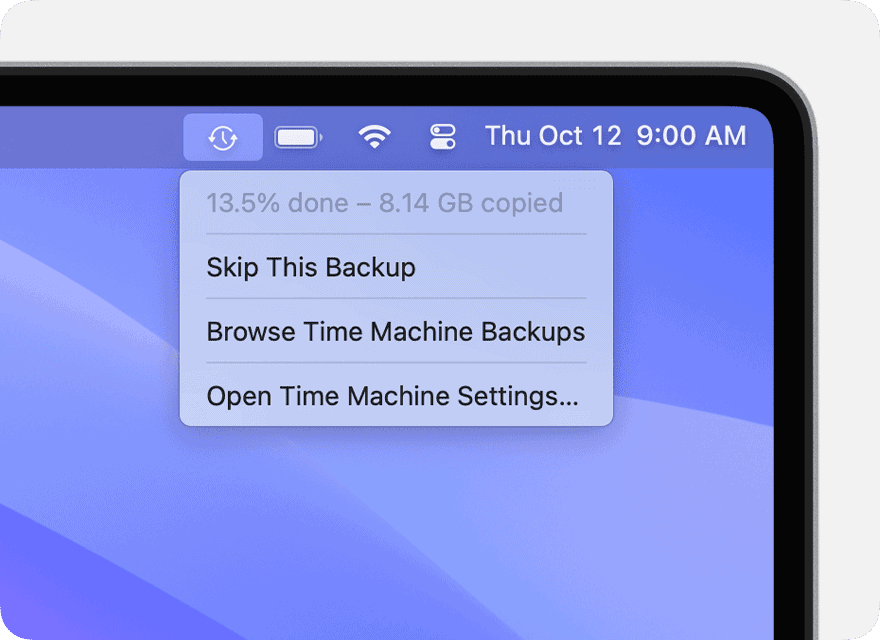
you may start a backup yourself too. Click the Time Machine icon in the menu bar. Choose “Back Up Now”.
Time Machine keeps hourly backups for a day, daily backups for a month, and weekly backups for all older periods. It deletes old backups when it needs space.
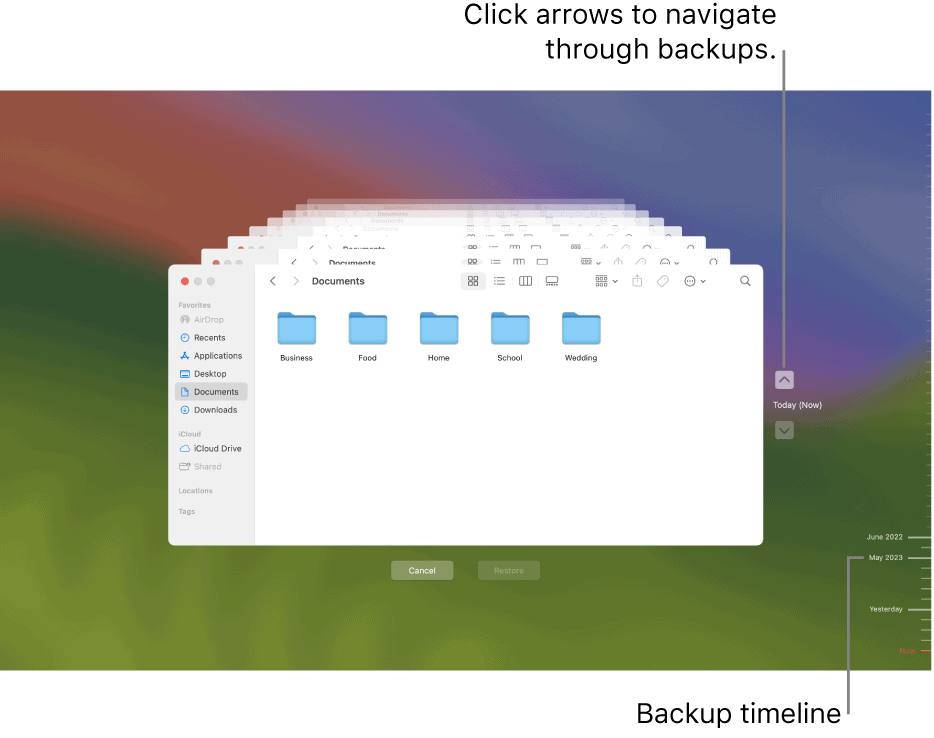
You can see your backups by clicking “Enter Time Machine” in the menu. This lets you look at old versions of your files.
Exploring Cloud and Remote Backup Solutions
Cloud backups offer easy and secure ways to protect your MacBook data. They let you save files online and access them from anywhere.
iCloud and iCloud Drive Integration
iCloud is built into MacBooks. It backs up photos, contacts, and more. To use it:
iCloud Drive stores files in the cloud. You can sync it across devices. To set it up:
iCloud gives 5GB free storage. you’re able to buy more if needed.
Selecting Third-Party Backup Software
Many apps can back up MacBooks to the cloud. Popular choices include:
To pick the best option:
Some apps work in the background. Others need manual backups.
Setting Up Online Backup Systems
Once you choose a backup service, set it up:
This may take hours for lots of files. After that, it runs faster.
Set backups to run often. Daily is best for most users. you may also:
Check your backups now and then. verify they’re working right.
Frequently Asked Questions
Backing up a MacBook is crucial for data safety. Several methods exist to protect your files and settings.
What are the steps to backup a MacBook Pro to an external hard drive?
Time Machine will now back up your files automatically.
How can one ensure their MacBook Air is fully backed up to iCloud?
Make sure your MacBook Air has enough iCloud storage space.
What methods are available for backing up a Mac without using Time Machine?
Each method has its own pros and cons. Choose based on your needs.
How can a user verify that their Mac’s data is securely backed up to iCloud?
Check your iCloud settings to make sure all desired items are selected for backup.
What are the most effective strategies for performing a complete MacBook backup?
A mix of these strategies offers the best protection for your data.
What are the recommended procedures to back up a Mac before sending it for repair?
These steps help protect your data while your Mac is being repaired.
