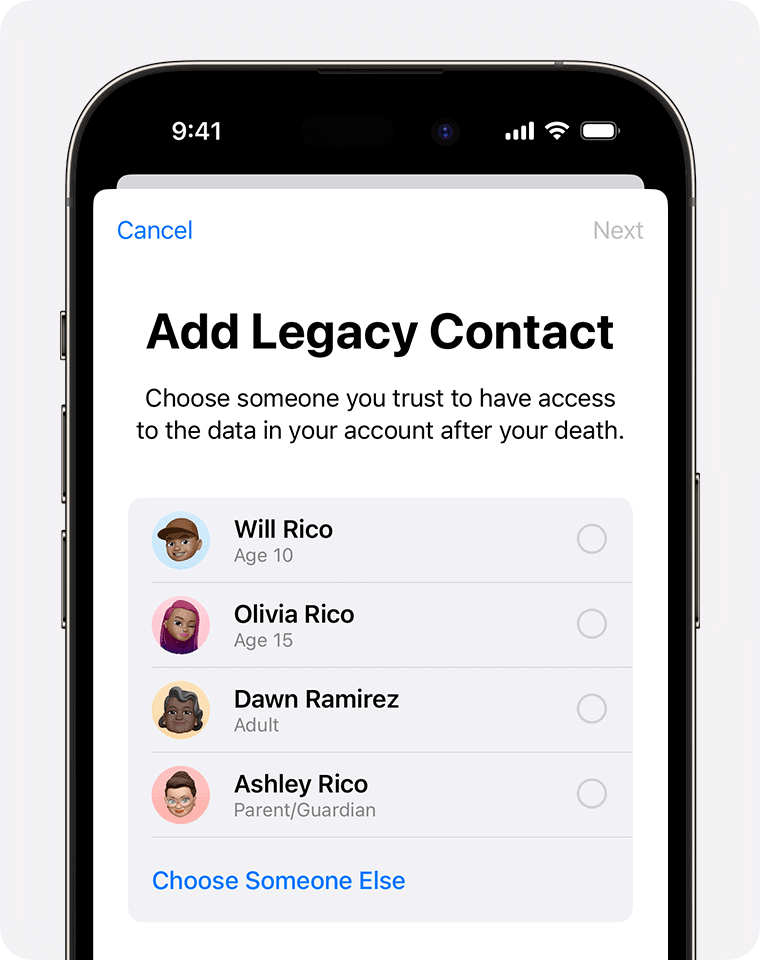
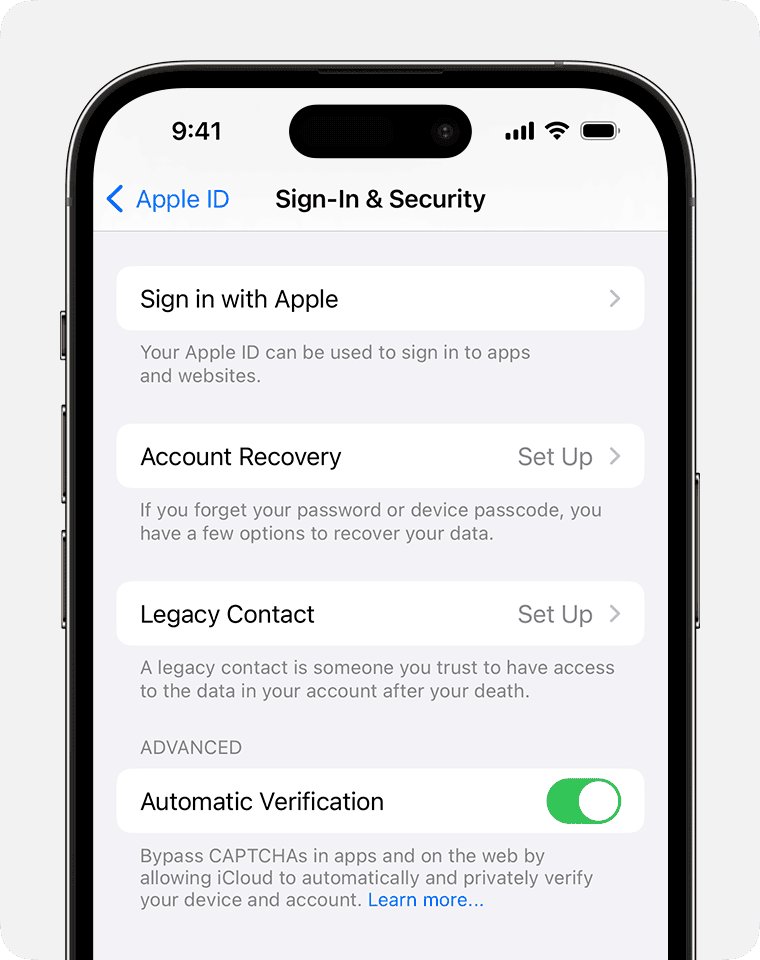
Apple’s Legacy Contact feature lets you choose someone you trust to access your Apple ID data after you die. This feature ensures that your loved ones can still view your photos and other important information. With the Legacy Contact feature, you can set up access for a trusted person to manage your account after you’re gone. Setting up a Legacy Contact is easy and can be done directly from your iPhone, iPad, or Mac. Your chosen Legacy Contact will need an access key and proof of your death to gain access, keeping the process secure and respectful of your privacy.
Leaving a Digital Legacy: iPhone’s Legacy Contact Feature
What is Legacy Contact?
Apple’s Legacy Contact is a feature allowing you to designate a trusted person to access your Apple ID data in the event of your death. This includes photos, messages, notes, files, contacts, calendar events, and more. It doesn’t include licensed media, subscriptions, or Keychain passwords.
How to Set Up Legacy Contact
What Your Legacy Contact Needs to Know
Important Considerations
Key Benefits
Key Takeaways
Understanding Legacy iPhone Features
Legacy features on an iPhone ensure that a person’s data is secure during their lifetime and accessible to trusted individuals afterwards. Apple’s iOS settings and privacy tools provide means for managing digital information stored iniCloud.
iOS and Legacy Functionality
Starting with iOS 15.2, Apple introduced a feature allowing users to designate Legacy Contacts. This ensures access to a person’s digital data after their passing. Users must use an Apple device with the necessary iOS update to use these functions.
Digital Legacy Setup on iPhone
To set up a Legacy Contact, iPhone users need to:
Users can add anyone they trust, like family members, using a simple process accessible directly on their device.
Apple ID and iCloud Essentials
AnApple IDis central to managing a user’s data, including theiriCloud storage. To ensure privacy, users should regularly visitprivacy.apple.comto review their settings. The Digital Legacy feature interfaces directly with iCloud, allowing a Legacy Contact to access essential data in accordance with the user’s wishes.
Legacy Contact Management
Managing a legacy contact involves selecting a trusted person to access your iPhone data after your death. This process ensures your digital legacy remains with someone you trust.
Adding and Removing Legacy Contacts
To add a legacy contact, go toSettingsthen tap on your name. Next, selectPassword & Securityand chooseLegacy Contact. You can then selectAdd Legacy Contactand follow the prompts. To remove a contact, revisit this menu and choose the edit option. You’ll need iOS 15.2 or later to perform this task. The contact you choose will receive an access key, which along with a death certificate, grants them access to your iCloud data.
Accessing iPhone Data After Owner’s Death
When an iPhone owner dies, the legacy contact use the access key provided to them. They will need to provide the deceased’s death certificate to Apple. Following verification, the legacy contact gains access to items like photos and documents. However, sensitive information such as stored passwords and payment details is not shared.
Security and Privacy Concerns
Apple’s Digital Legacy program respects the privacy of both the account owner and the legacy contact. The legacy contact will undergo authorization to prevent unauthorized access. If an estate is in probate, a court order may become necessary to access the deceased user’s digital information. This system prevents abuse and ensures that the legacy contact acts according to the owner’s wishes.